Posts

Showing posts with the label Power Automate

Regular Expressions within Power Automate

Image
Out of the box, Power Apps supports Regular Expression (or RegEx) matching through in-built IsMatch, Match and MatchAll functions . However to use Regular Expression within Power Automate, we need to use an Independent Connector - RegEx Matching . There are eight (8) actions supported within this connector. While seven are specific to common use cases, there is a generic action which can cover any RegEx needs. In this blog post we will look example for three actions within this connector Check for valid email format This action checks whether entered text is in a valid email format Check whether text contains digit This action checks whether entered text contains a digit anywhere Check whether text matches the specified pattern This action checks whether entered text matches the specified pattern. This is a  generic action which can cover any RegEx use case.
Increase number of rows returned from Get Items SharePoint Action under Power Automate

Image
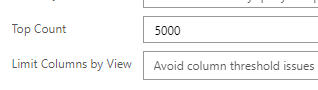
By default, SharePoint Get Items action only returns 100 items which matches your Filter Query.  You must always try to use ODATA filter query to reduce the number of rows that are being returned to you. This will make your cloud Flows much for efficient. If you have a large SharePoint List and your use-case requires, getting more than 100 items, then you will need to make a small setting change to the Get Items action  in your Flow. You will have to do this change each time you add a Get Items action requiring more than 100 items. 1 - If your requirement is upto 5000 records In this scenario, you can change the Top count property to 5000. 2 - If your requirement is upto 100,000 records Under this scenario, click the 3-dots ellipses next to the Get Items action and turn on the pagination settings with Threshold equal to or less than 100,000 depending on your use-case. Note that your license type may restrict the maximum number your can use in the Threshold settings. All licens...

Generate QR code within Power Automate

Image
In this post we will learn how to dynamically generate QR code using Power Automate and then send that as a PDF attachment to an email address. For this post we will use Google Charts API, however note that since this is an external API so you need to check with your organizational data loss prevention policies, data security policies before making any API calls. Additionally, since this is a third-party API, this may be discontinued in the future and hence you may want to plan for this. The URL to generate a QR code looks as below: https://chart.googleapis.com/chart?cht=qr&chs= 300x300 &chl= powerplatformguide.blogspot.com Here we dynamically specify the dimensions of the QR code and its content based on our requirement. To build such a Flow, we will follow the following steps: 1 - Create an Instant Flow with three user input parameters as below: 2 - Add an action using OneDrive connector to upload a file from URL with parameters as seen below. We need to make sure that the de...

Get start date of month and last date of month dynamically from Power Automate

Image
There can be multiple business use cases where you want to know start date and end date of the month in a dynamic manner, either where a date is provided to you, or you are using current date. For example, if you want to filter your data-source to show records for an entire month. This can be achieved using expressions within Power Automate. In this post, we are using current date/time to obtain first and last date of the month. Start date of the month startOfMonth(utcNow(),'yyyy-MM-dd') Last date of the month There is no in-built function to calculate last day of month, so we will first calculate first day of the next month and then subtract 1 day from it. First date of next month : startOfMonth(addToTime(utcNow(),1,'month'),'yyyy-MM-dd') Last date of current month: addDays(startOfMonth(addToTime(utcNow(),1,'month')),-1,'yyyy-MM-dd')

Detect When A Particular File-Type Is Uploaded To SharePoint Document Library

Image
You have a SharePoint Document Library where your users are uploading documents. You then use that information to perform other automated tasks such as closing tasks, getting approvals, sending notifications etc.  However you don't want your users to upload a particular file-type, for example, you don't want people to upload Excel Macros into the SharePoint Document Library. Every time someone uploads an Excel Macro file, you want to email them about your policy. To construct this in Power Automate, we will use endsWith() expression. We will create a Condition block and check if       endsWith(triggerOutputs()?['headers/x-ms-file-id'],'.xlsm') is true Under the "Yes" branch of this Flow, we can email the person who has uploaded the Excel Macro file about the policy, or take any other step as per our business use-case.

Get Link To A Particular Flow Run

Image
There can be various situations where you need to know the link to a particular Flow run, for example in case of a failure, or if you want to store the unique ID of each run against your data record for future audits or traceability. In this post, we will learn: How to get ID of the cloud Flow How to get unique ID of a cloud Flow run How to get link to a cloud run The trick to get these details is the workflow() expression, which returns all details about the workflow during run time. To add this into your Flow, simply use the expression:  workflow() A sample output of this expression is in below format: {      "id" :  "/workflows/e54ef274a2f14b54af75fabc3c3c86d3" ,      "name" :  "8a854a53-5863-47d1-acc9-c5993d8f48ff" ,      "type" :  "Microsoft.Logic/workflows" ,      "location" :  "westeurope" ,      "tags" : {        ...